Hi all,
I’m again with awesome networking
activity. Here’s my requirement, I need to configure a network to connect Airport
and an archeology department of my country. But the thing is I need to consider
some important points regarding security and cost. For achieving
these two points I’m going to introduce special Local Area Networking
technology call Virtual Local Area Network, I think most of networking students
familiar with the short term use for identifying this technology, that is VLANs.
In my requirement I clearly mention
about mainly two things, those are Security and Cost. Basically, most of
networking scenarios we use VLANs for achieve these two goals. Now see how to achieving these two goals using VLANs.
Most of networking devices which are used to configure network are very costly. When we going to configure network in
organization we need to achieve their basic requirement such as communication issues,
but we should consider the cost also, otherwise organization wants to fired few
employees for cover networking budget. Another thing is security, let’s focus
again to the same scenario. Most of organization separate as the different section
as the finance, management, HR like wise. Lot of operations done in these section
done by independently. Because of these kind of situations we can’t configure whole organization using same LAN. So in order to mitigate security issues in our networking team going to introduce 3 separate LANs for HR, Finance and the Management. Three separate LANs mean we need to use three switches that point, lead for our project into very large budget, now we need to think how to avoid high budget. Virtual Local Area Network (VLAN) comes up with a solution for that, As the name says we’re going to configure three different networks in a virtual manner rather than using three switches.
Ok let’s see how to do it.
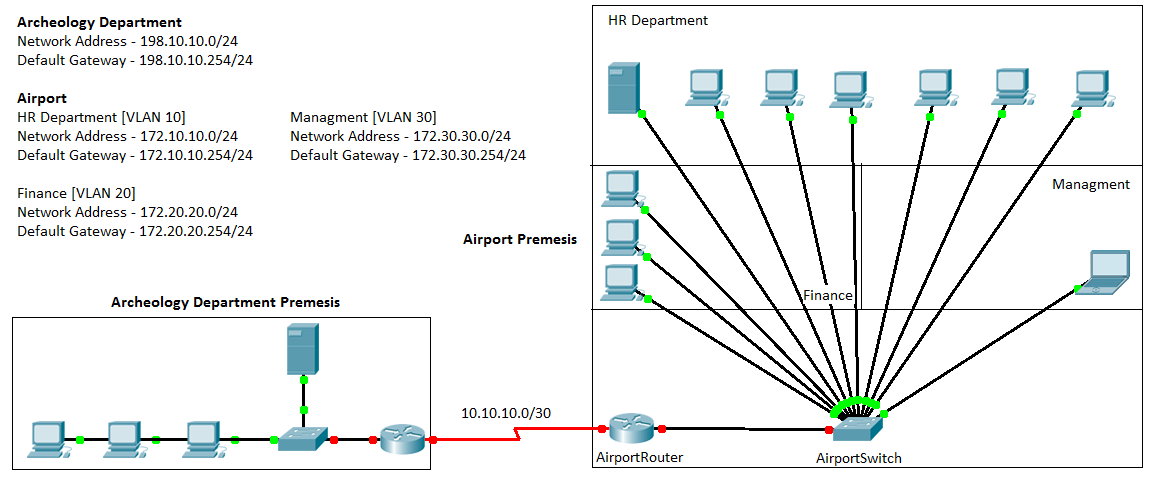 | |
| Here’s the network diagram I designed using CISCO Packet tracer. |
1. Set default gateways
in sub interfaces in ‘AirportRouter’
AirportRouter(config)#
interface FastEthernet0/0
AirportRouter(config)#
no shutdown
AirportRouter(config)#
interface FastEthernet0/0.10
AirportRouter(config)#
encapsulation dot1Q 10
AirportRouter(config)#
ip address 172.10.10.254 255.255.255.0
AirportRouter(config)#
interface FastEthernet0/0.20
AirportRouter(config)#
encapsulation dot1Q 20
AirportRouter(config)#
ip address 172.20.20.254 255.255.255.0
AirportRouter(config)#
interface FastEthernet0/0.30
AirportRouter(config)#
encapsulation dot1Q 30
AirportRouter(config)#
ip address 172.30.30.254 255.255.255.0
AirportSwitch(config)#VLAN
10
AirportSwitch(config)#Name HR
AirportSwitch(config)#Name HR
AirportSwitch(config)#VLAN
20
AirportSwitch(config)#Name Finance
AirportSwitch(config)#Name Finance
AirportSwitch(config)#VLAN
30
AirportSwitch(config)#Name Management
3.Set ports as a trunk port.
AirportSwitch(config)#Name Management
3.Set ports as a trunk port.
AirportSwitch(config)#Interface
fastethernet 0/1
AirportSwitch(config)#switchport mode trunk
4.Assign VLANs to the ports.
AirportSwitch(config)#switchport mode trunk
4.Assign VLANs to the ports.
AirportSwitch(config)#interface
FastEthernet0/1
AirportSwitch(config)#switchport mode trunk
AirportSwitch(config)#switchport mode trunk
AirportSwitch(config)#interface
FastEthernet0/2
AirportSwitch(config)#switchport access vlan 20
AirportSwitch(config)#switchport mode access
AirportSwitch(config)#interface FastEthernet0/3
AirportSwitch(config)#switchport access vlan 20
AirportSwitch(config)#switchport mode access
AirportSwitch(config)#interface FastEthernet0/4
AirportSwitch(config)#switchport access vlan 30
AirportSwitch(config)#switchport mode access
AirportSwitch(config)#interface FastEthernet0/5
AirportSwitch(config)#switchport access vlan 10
AirportSwitch(config)#switchport mode access
AirportSwitch(config)#interface FastEthernet0/6
AirportSwitch(config)#switchport access vlan 10
AirportSwitch(config)#switchport mode access
AirportSwitch(config)#interface FastEthernet0/7
AirportSwitch(config)#switchport access vlan 10
AirportSwitch(config)#switchport mode access
AirportSwitch(config)#switchport access vlan 20
AirportSwitch(config)#switchport mode access
AirportSwitch(config)#interface FastEthernet0/3
AirportSwitch(config)#switchport access vlan 20
AirportSwitch(config)#switchport mode access
AirportSwitch(config)#interface FastEthernet0/4
AirportSwitch(config)#switchport access vlan 30
AirportSwitch(config)#switchport mode access
AirportSwitch(config)#interface FastEthernet0/5
AirportSwitch(config)#switchport access vlan 10
AirportSwitch(config)#switchport mode access
AirportSwitch(config)#interface FastEthernet0/6
AirportSwitch(config)#switchport access vlan 10
AirportSwitch(config)#switchport mode access
AirportSwitch(config)#interface FastEthernet0/7
AirportSwitch(config)#switchport access vlan 10
AirportSwitch(config)#switchport mode access
AirportSwitch(config)#interface FastEthernet0/8
AirportSwitch(config)#switchport access vlan 20
AirportSwitch(config)#switchport mode access
AirportSwitch(config)#interface FastEthernet0/9
AirportSwitch(config)#switchport access vlan 10
AirportSwitch(config)#switchport mode access
AirportSwitch(config)#interface FastEthernet0/10
AirportSwitch(config)#switchport access vlan 10
AirportSwitch(config)#switchport mode access
AirportSwitch(config)#interface FastEthernet0/11
AirportSwitch(config)#switchport access vlan 10
AirportSwitch(config)#switchport mode access
AirportSwitch(config)#interface FastEthernet0/12
AirportSwitch(config)#switchport access vlan 10
AirportSwitch(config)#switchport mode access
5. Configure Routing protocol in ‘AirportSwitch’.
AirportRouter(config)#router
eigrp 110
AirportRouter(config)#network 10.0.0.0
AirportRouter(config)#network 172.10.0.0
AirportRouter(config)#network 172.20.0.0
AirportRouter(config)#network 172.30.0.0
If you need more clarifications, you can refer this packet tracer file. [CISCO Packet tracer File]
AirportRouter(config)#network 10.0.0.0
AirportRouter(config)#network 172.10.0.0
AirportRouter(config)#network 172.20.0.0
AirportRouter(config)#network 172.30.0.0
If you need more clarifications, you can refer this packet tracer file. [CISCO Packet tracer File]
Best Regards,
Denuwan Himanga


